


2. Linear workflow with color depth and color adjustments – Part II
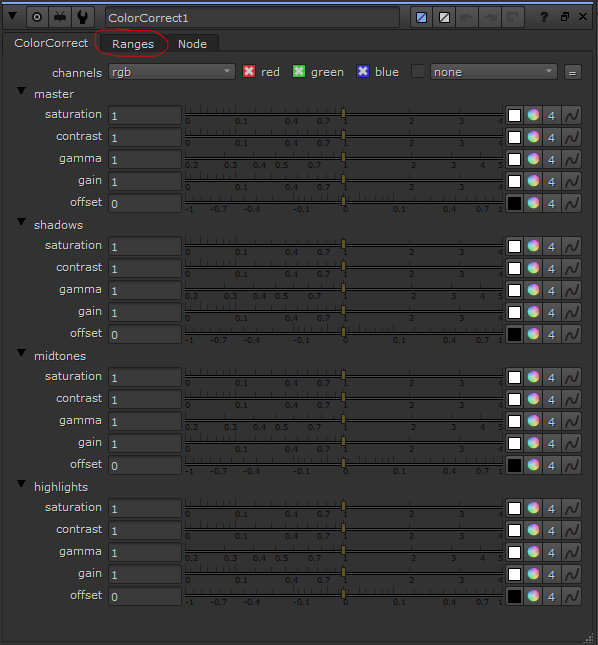 b. ColorCorrect node – Description
You can create this node by pressing “c” on your keyboard, press tab and then type colorcorrect or from the color’s menu, positioned on the left side.

This node would be the second most popular node used for grading in Nuke and has some unique features that I will explain bellow:
The node is split it in four sections, master, shadow, midtones, highlights.
– master’s adjustments have effect over all the values.
– shadow’s adjustments will control the darkest values of the image we grade.
– midtones adjustments will control the intermediate values of the image we grade.
– highlights adjustments will control the brightest values of the image we grade.
We have two new parameters for this node – Saturation and Contrast. They do what the name says. These two parameters can be found under each section. All the parameters have on the right side a color square, a color wheel, number four square and the animation button.
Gamma, Gain, Offset do the same thing they do in the Grade node, which we explained before.
The real power for this node come’s when you press the Ranges tab (it is at the top of the node’s menu).

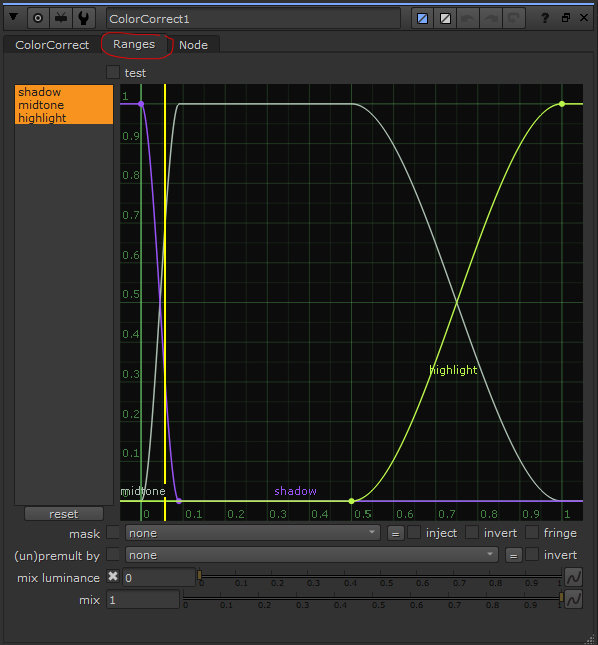 You will have access to curves which can control how much of a particular section (shadows or highlights) can be influenced by the settings. This is very useful if you want to isolate either the dark or bright values for further adjustments.
ColorCorrect – functional application.
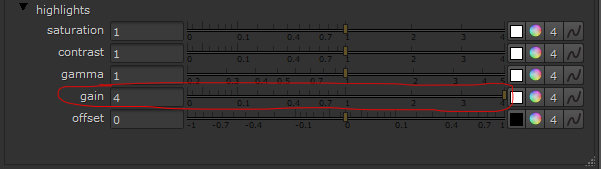
For adjusting the bright values, under the highlight section, increase the gain parameter to 4.
Then press the Ranges button and select just the highlight curve. In the curve editor move left or right, until you have highlighted, only the values that you need to adjust.
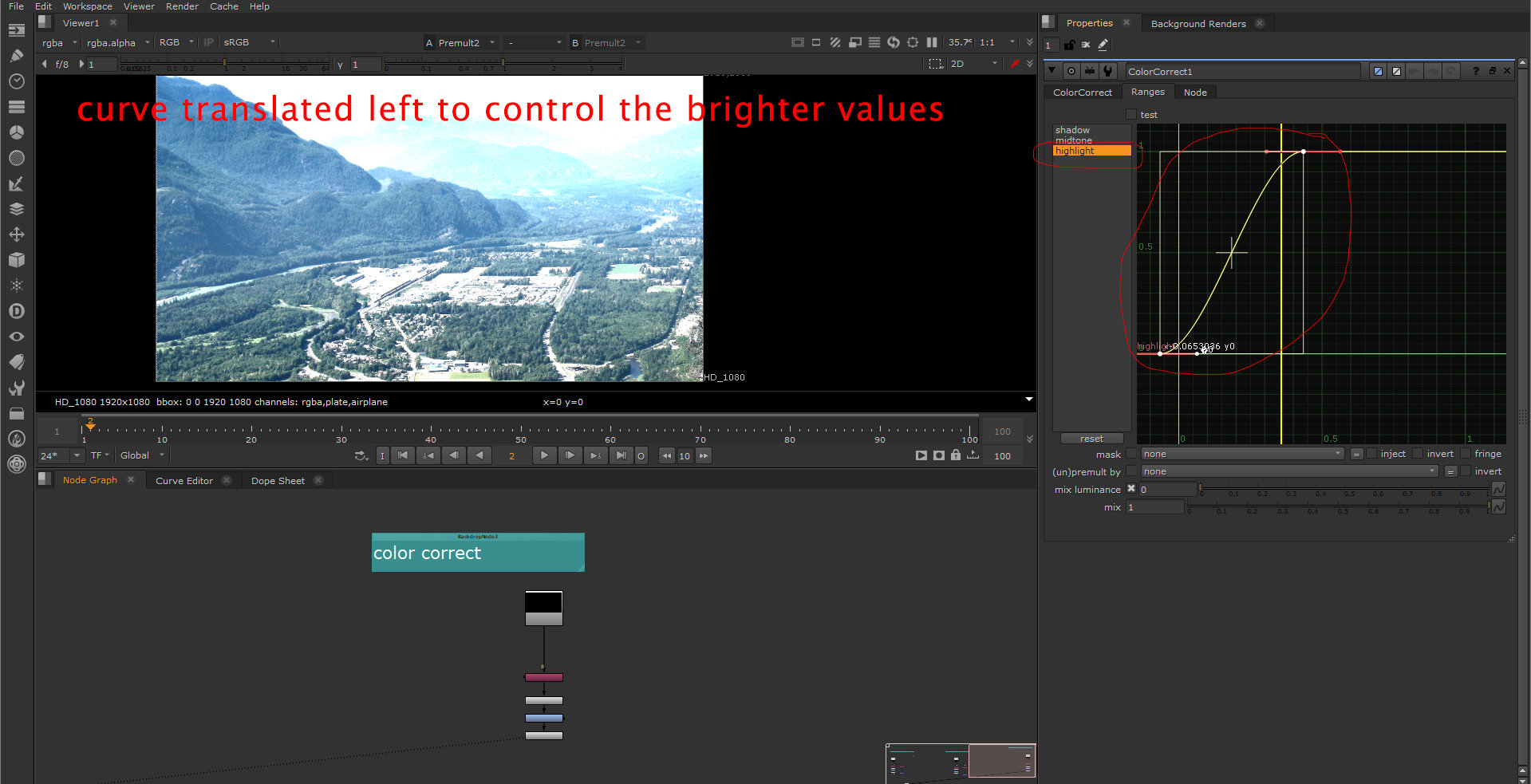 Once you define the values needed to be color corrected, you can go back to the highlights section and do any color or values modification required. You can apply adjustment on any of the parameters (saturation, contrast, gamma, gain or offset).
 The same steps can be used for parameters, under the shadows section too.
Note: The curve for the midtones section doesn’t move, it is a fix one. You can adjust only the shadow and light curve.
 c. ColorLookup node – Description
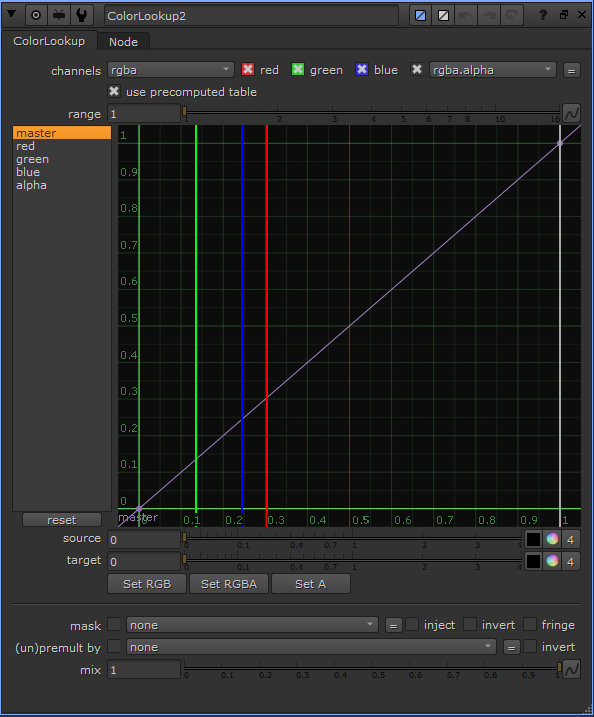
Probably the most powerful node in Nuke for grading, but not so popular actually. Has the same functionality like Curve layer in Photoshop.
If you want to add a points along the curve, just hold CTRL+ALT and LMB to define where you want to place a point.
You can do adjustments at the master level or per channels.
Feel free to explore the ability to apply grading with the ColorLookup node.
This is where we end the Chapter II. In the next chapter we will apply everything we learned so far, in order to create a matte paint with the VFX production’s demands.